If you are experiencing errors, capturing the network logs can help us identify the root cause. Please follow these steps to retrieve the exact details:
Step 1: Open Developer Tools
Right-click anywhere on the login page and select "Inspect" from the drop-down menu.
(Alternatively, you can press
Ctrl + Shift + Ion Windows/Linux orCmd + Option + Ion Mac).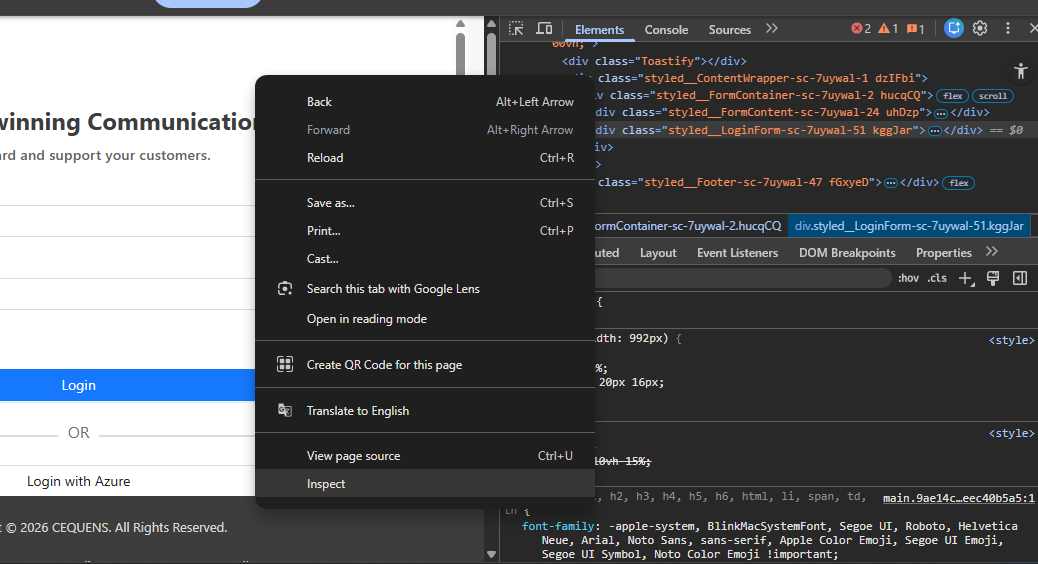
Step 2: Enable "Preserve Log" in the Network Tab
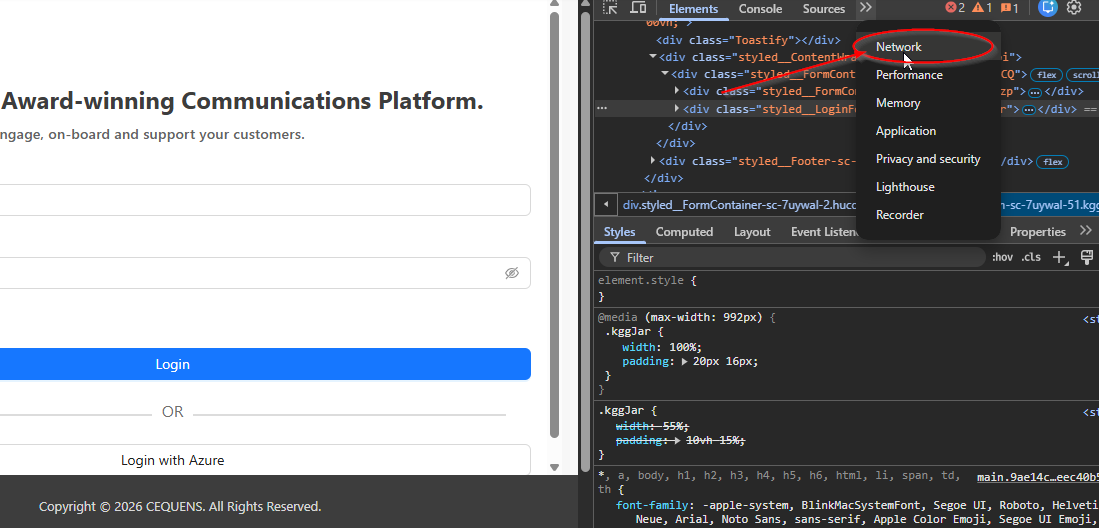
In the Developer Tools panel that opens, click on the "Network" tab.
Check the box next to "Preserve log". This ensures that the logs are not cleared when the page refreshes or tries to navigate to the next screen.
Step 3: Reproduce the Error
Leave the Developer Tools panel open and attempt to log in using your credentials as you normally would.
Step 4: Locate the Error and copy the cURL
Watch the Network tab as the login attempt processes.
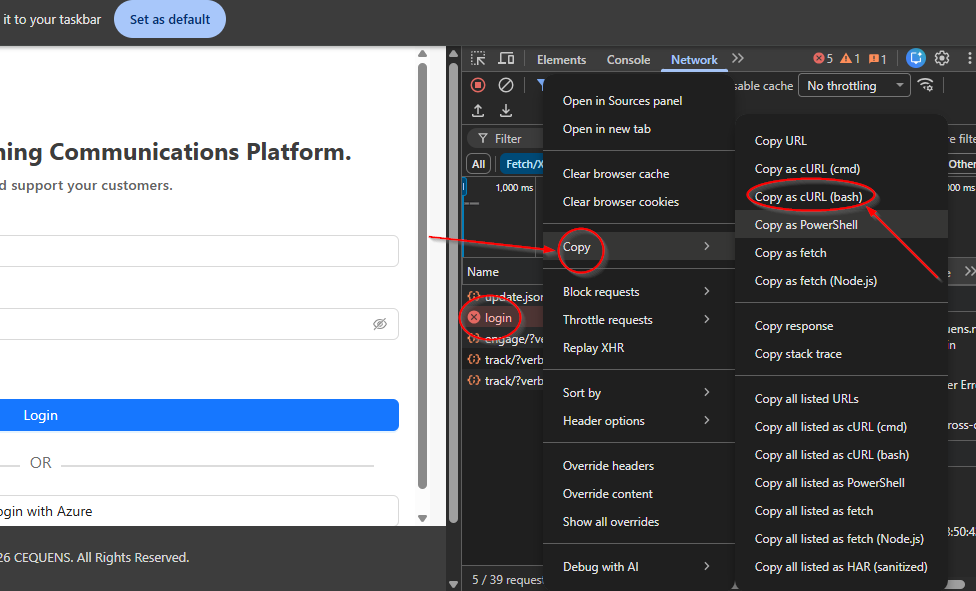
Look for the specific "login" request in the log list. If a network or server error occurred, this request will typically be displayed in red text.
Right-click on that red "login" and follow the steps in the screenshot below to copy the cURL and send it to the support team. This data is crucial for our team to investigate the issue.