Analyzing SMS API Data
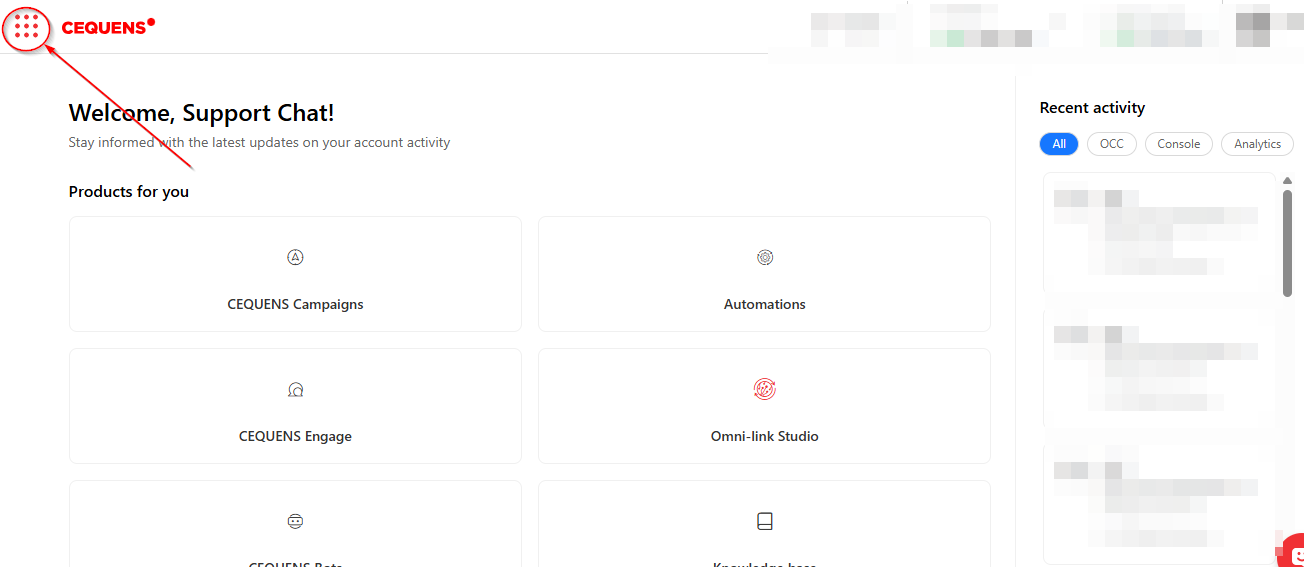
1. Click on the Menu Icon in the top-left corner.
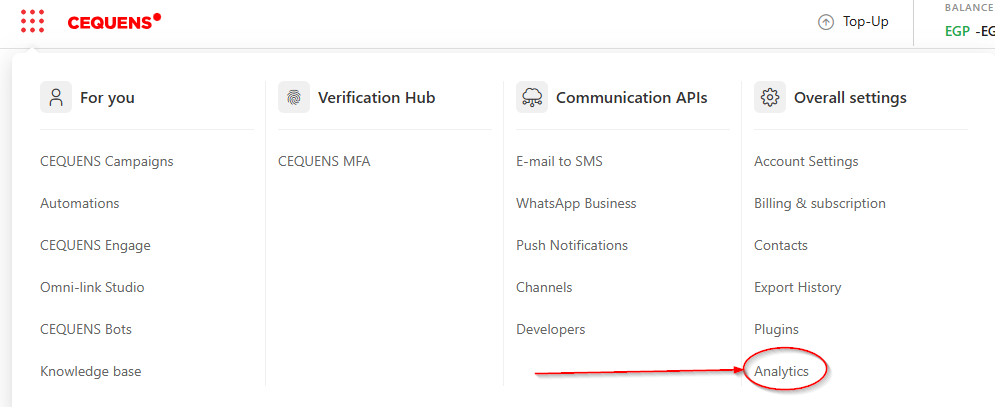
2. Select Analytics from the menu options.
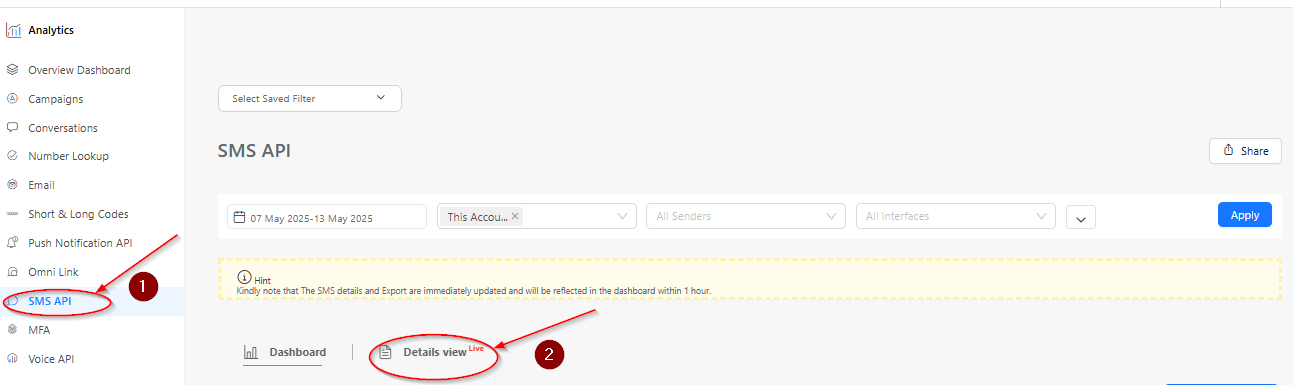
3. Click on SMS API and then select Details View.
How to Filter and Export Your Data
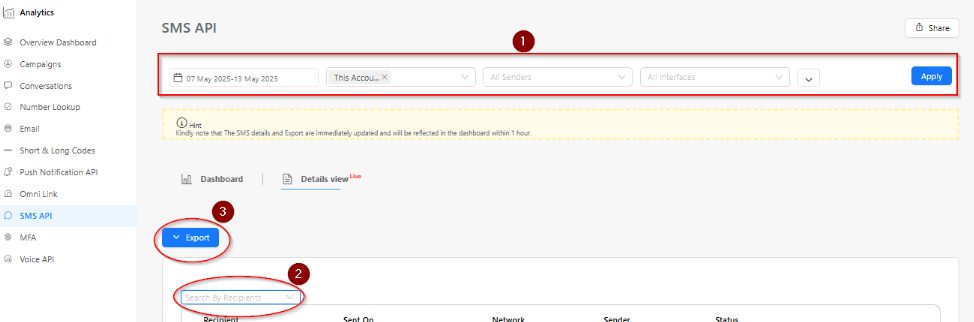
Apply Filters: Use the top filter bar (marked as 1 in the screenshot) to narrow your results. You can set a specific Date Range, choose an Account, or filter by Sender & Interface. Click the Apply button to load the filtered data.
Search for a Specific Recipient: Use the search field (marked as 2) to find a specific phone number or recipient detail. This is the fastest way to pinpoint a single record within a large list.
Export Your Data: Click the Export button (marked as 3) to generate a downloadable report.
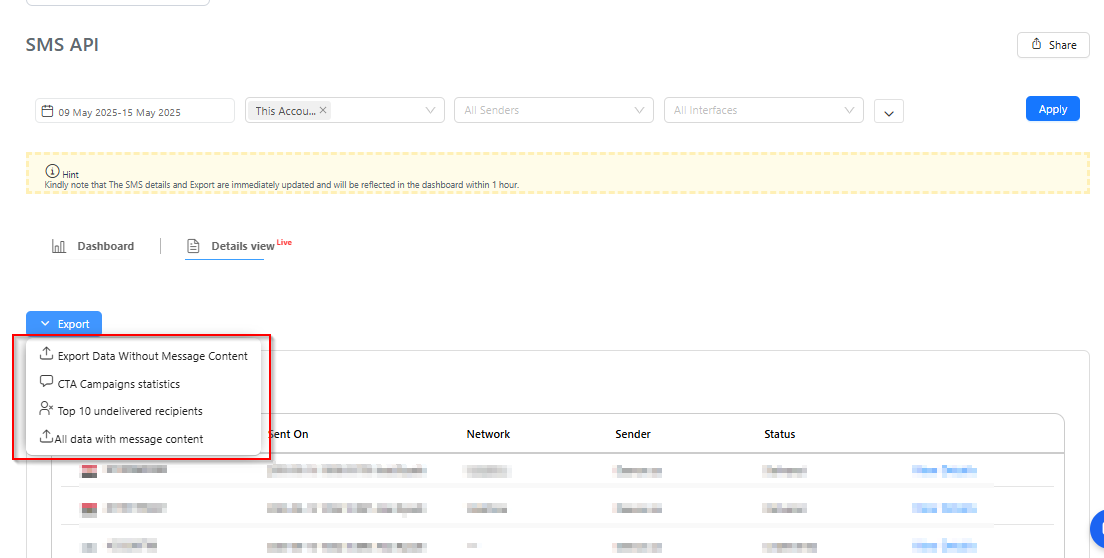
Note:- You will have four export options available, as outlined below:
Export Data Without Message Content – Download SMS data excluding message content.
CTA Campaigns Statistics – Export performance stats of CTA campaigns.
Top 10 Undelivered Recipients – View the top 10 recipients who didn’t receive messages.
All Data With Message Content – Export full SMS data including message content
Note:- You will have four export options available, as outlined below:
Export Data Without Message Content – Download SMS data excluding message content.
CTA Campaigns Statistics – Export performance stats of CTA campaigns.
Top 10 Undelivered Recipients – View the top 10 recipients who didn’t receive messages.
All Data With Message Content – Export full SMS data including message content