Follow these steps to build and launch a tailored SMS marketing campaign that reaches your customers with personalized details.
1. Start a New Campaign
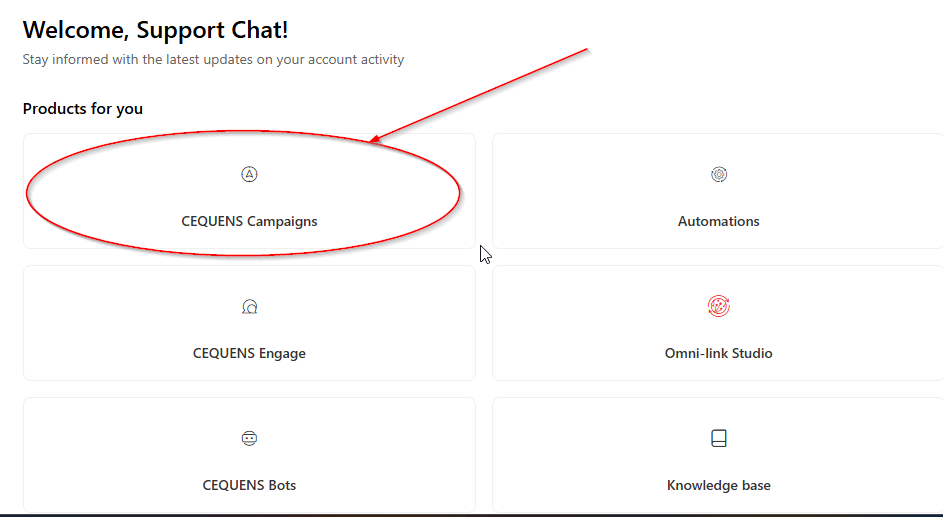
Select Cequens Campaigns.
Click the New Campaign button to begin.

2. Basic Setup
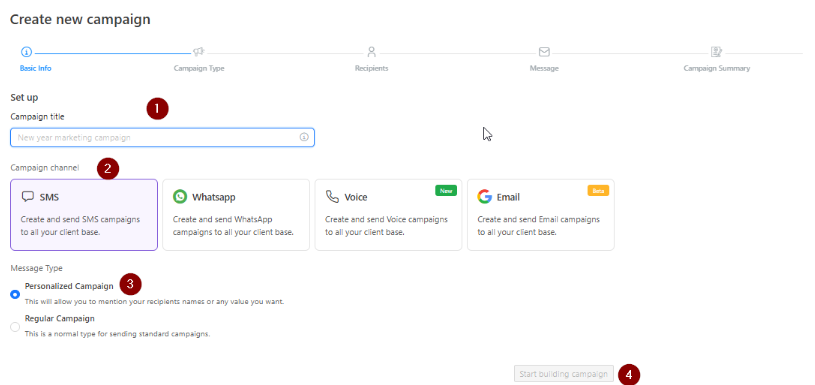
Fill in the initial details to define your campaign:
Campaign Title: Give your campaign a recognizable name (e.g., "Season_Sale_2026").
Channel: Select SMS.
Campaign Type: Choose Personalized Campaign to enable custom fields like names or unique data.
Click Start Building Campaign.
3. Configure Sender Details
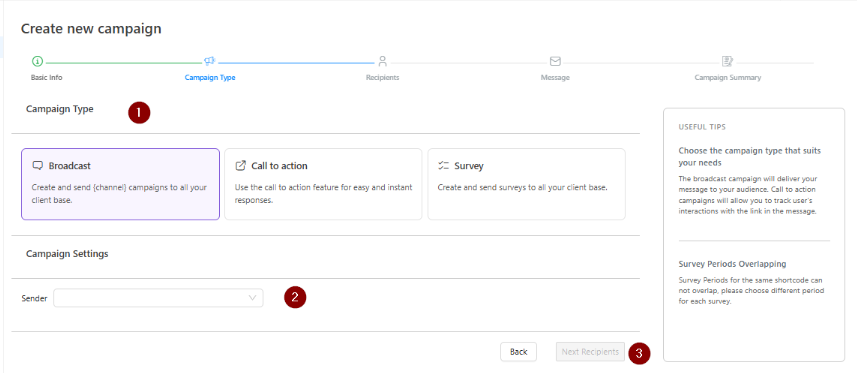
Confirm your Campaign Type.
Select Sender ID: From the dropdown, pick the authorized sender name that will appear on the recipients' phones.
Click Next: Recipients.
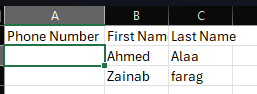
Note: The template provided above serves as a reference for how recipient data should be properly formatted and organized in the excel file.
4. Upload Your Recipient List
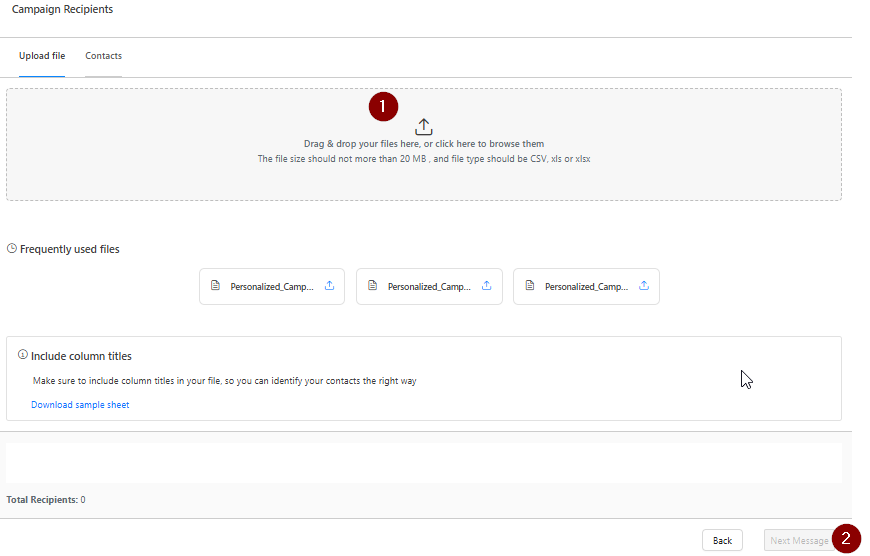
Prepare an Excel or CSV file (max 20 MB) containing your contact data.
Upload File: Drag and drop or browse for your
.csv,.xls, or.xlsxfile.File Requirements: Ensure the file content is in English and the filename contains no spaces.
Click Next: Message.
5. Compose and Personalize
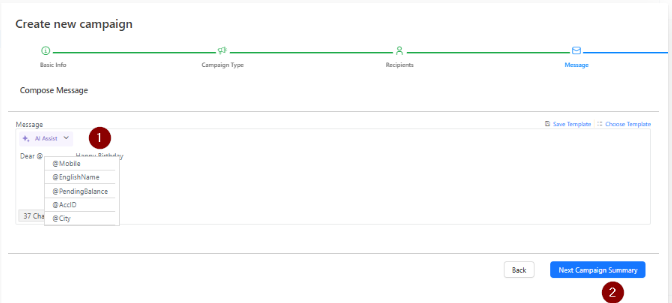
Craft Your Message: Type your content into the message box.
Add Personalization: Type the @ symbol to trigger a list of dynamic fields (e.g.,
@FirstName,@Balance,@MobileNumber). This will automatically pull data from your uploaded file.Click Next: Campaign Summary.
6. Review and Launch
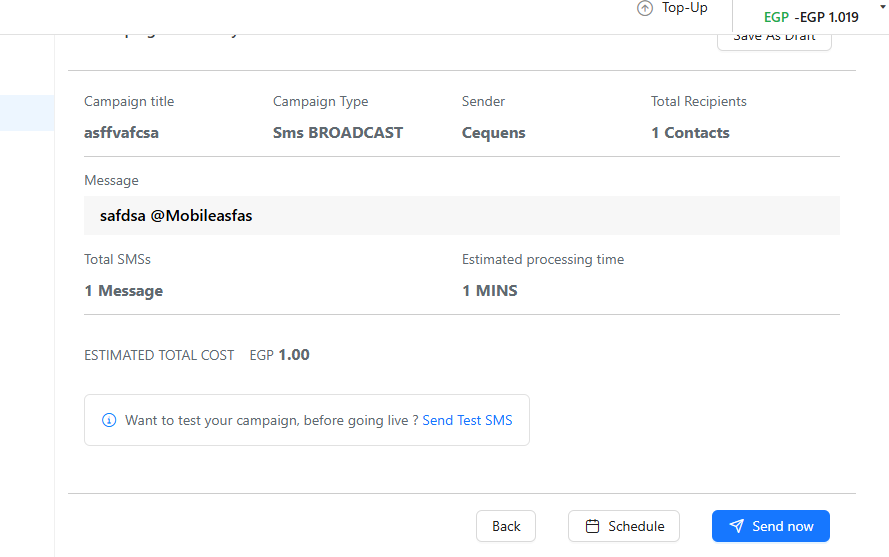
Before sending, perform a final check of your campaign title, message content, sender ID, and recipient count.
Test (Optional): Click Send Test SMS to see exactly how the message looks on your own device.
Choose Action: * Select Send Now for immediate delivery.
Select Schedule to pick a specific date and time for the launch.