
To ensure your team maintains secure access to the Cequens platform, follow this guide to reset Multi-Factor Authentication (MFA) for specific users.
How to Reset MFA for a User
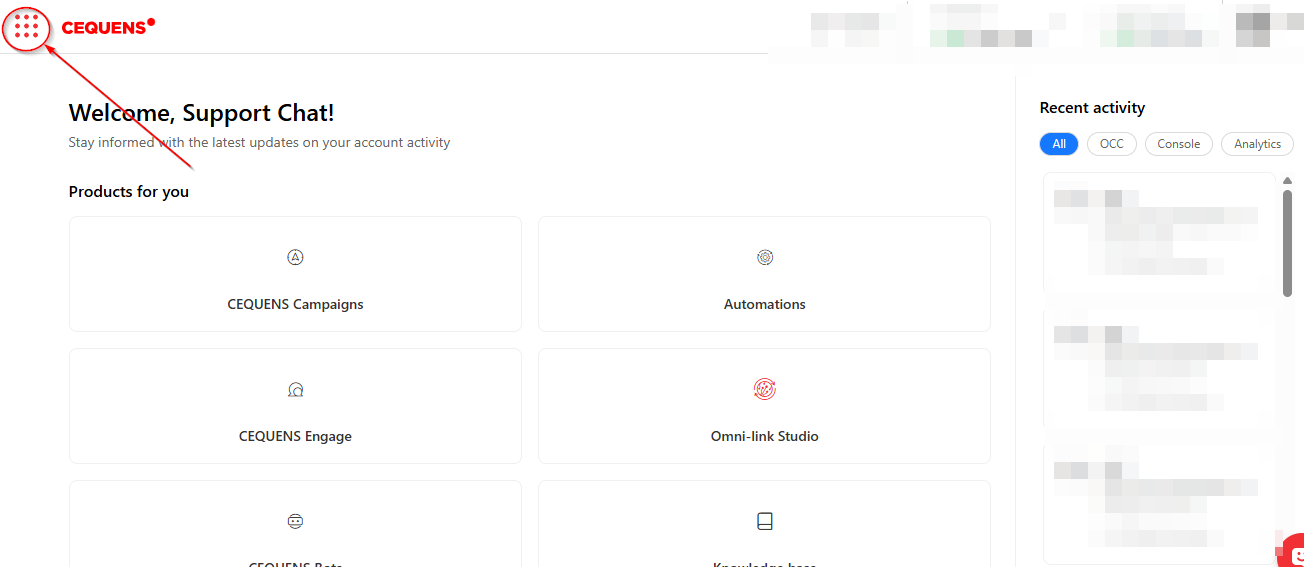
Open the Menu: Click on the Menu Icon to view your navigation options.
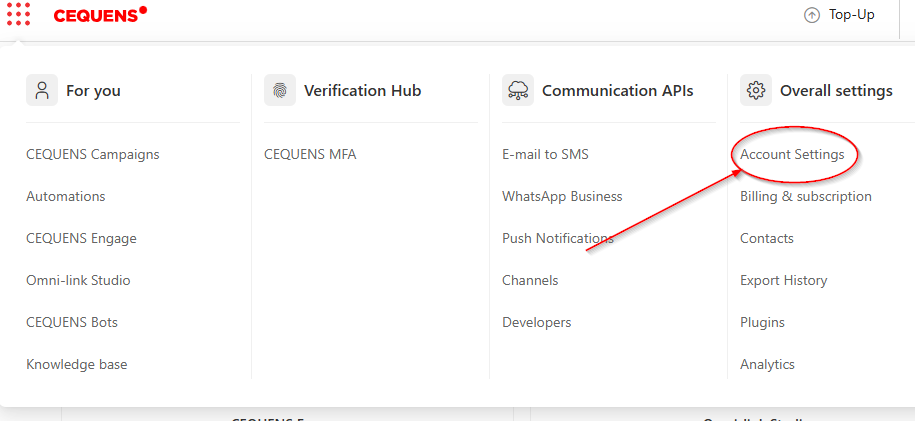
Access Settings: Navigate to and select Account Settings.
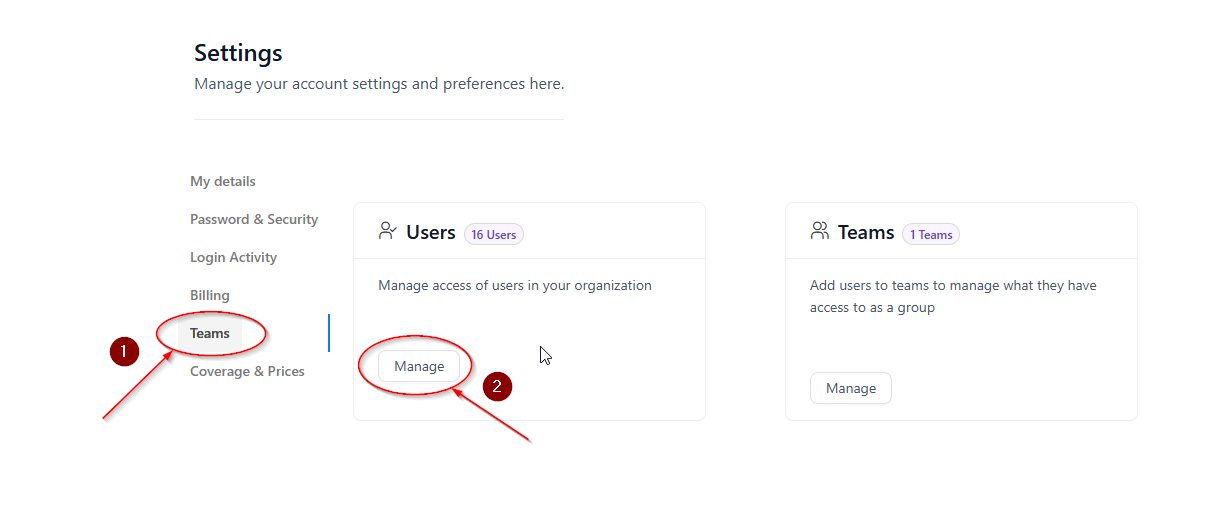
Manage Users: Go to the Teams tab and click on Manage Users to see your list of team members.
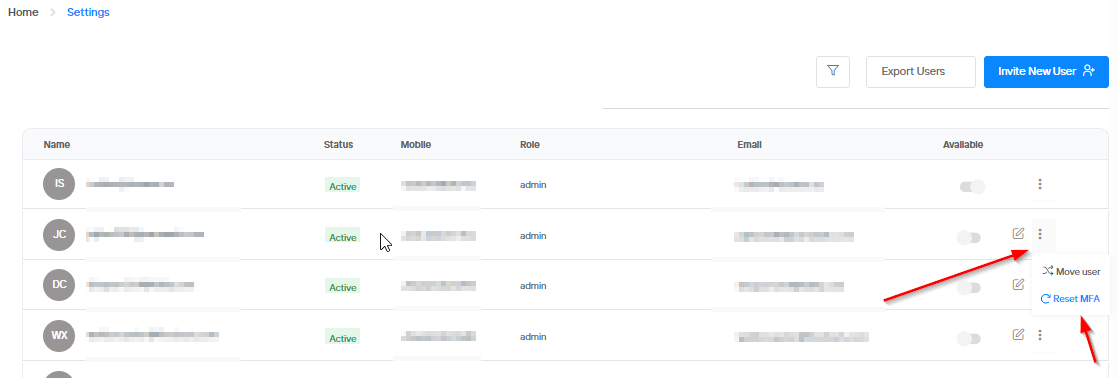
Execute Reset: Find the specific user you wish to update, click the Three-Dot Icon (⋮), and select Reset MFA from the dropdown menu.
Post-Reset Instructions
Initial Setup: Once the reset is performed, the user will be prompted to configure their OTP Token during their next login attempt.
Authentication App: The user should use the Google Authenticator app to complete this process.
Updating Details: After the user successfully logs in, they have the option to update their registered phone number.
Final Verification: If a number is changed, you may perform the MFA reset one additional time to ensure the new number is correctly authenticated.