
To add a new team or sub-account in Cequens, follow these steps to organize your messaging and manage user permissions effectively:
Steps to Create a New Team
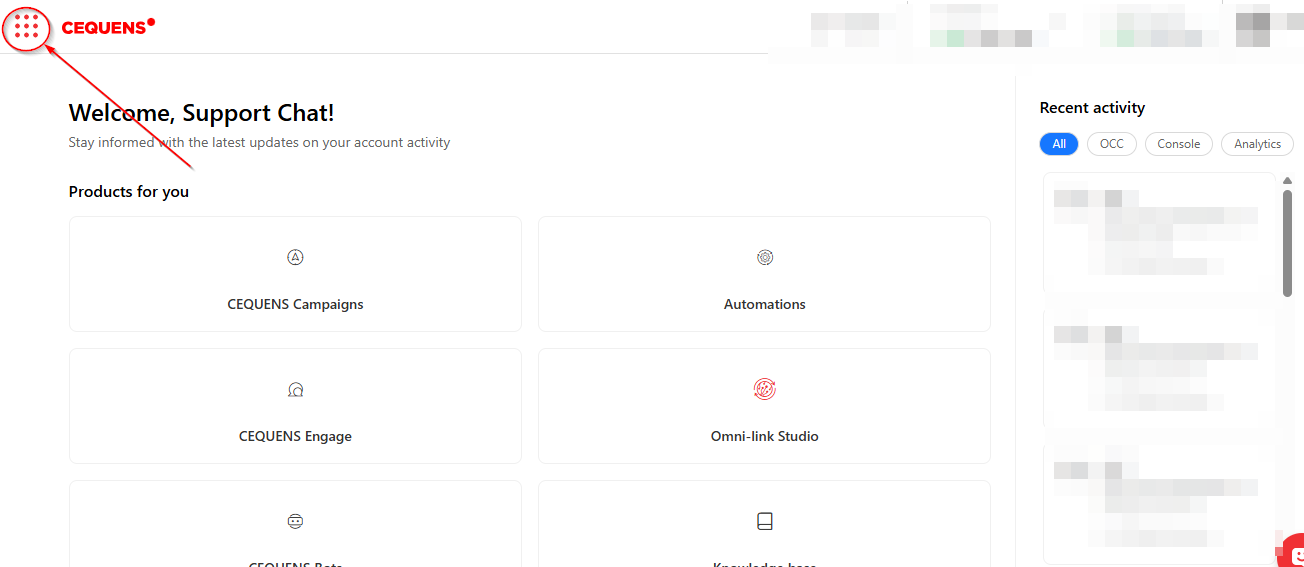
Access the Menu: Click on the Menu Icon located on your main dashboard.
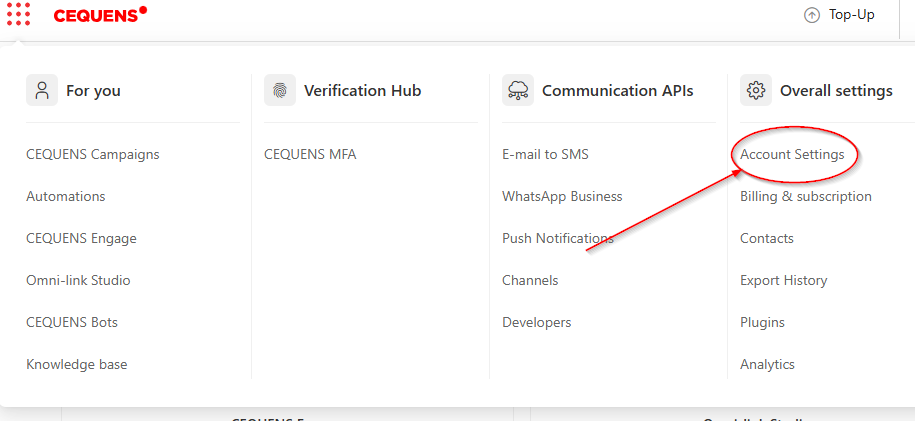
Navigate to Settings: Select Account Settings from the dropdown options.
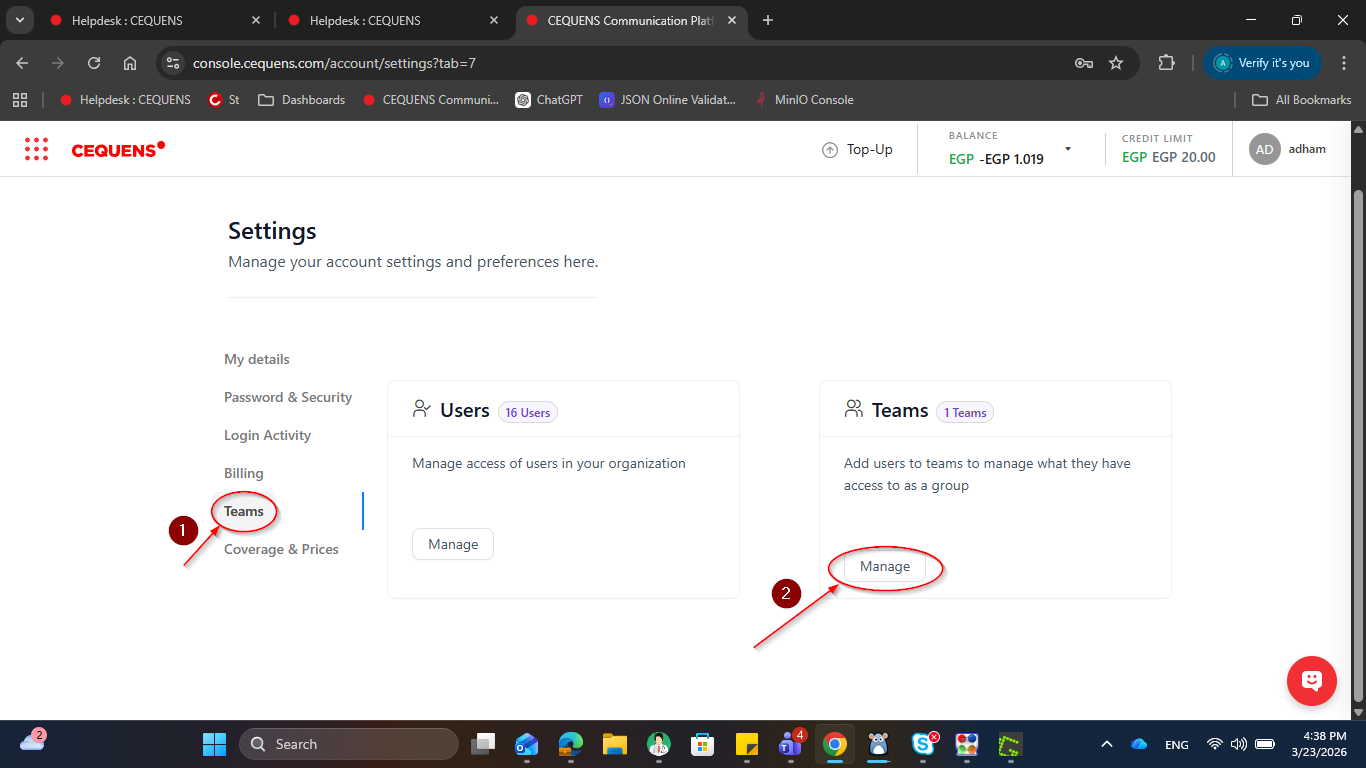
Initiate Team Creation: Click the Create New Team button.
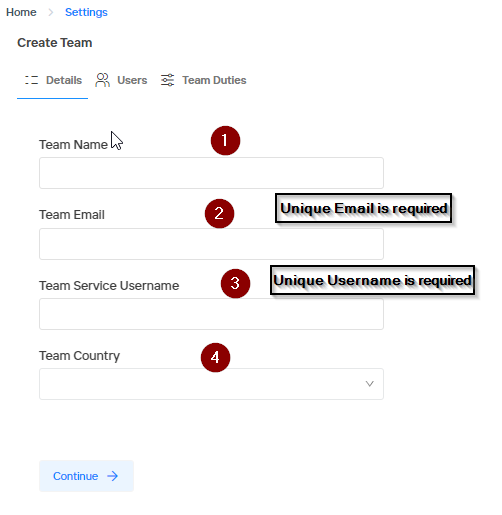
Enter Information: Fill in the required details for the new sub-account as prompted.
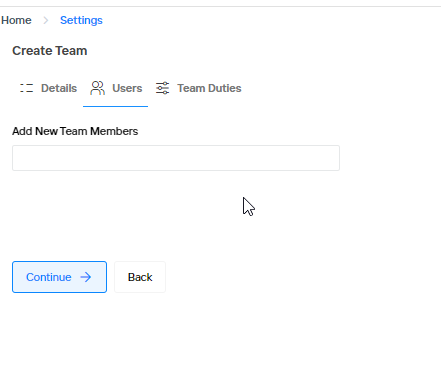
Add Users: Input the specific users you wish to assign to this team and click Continue.
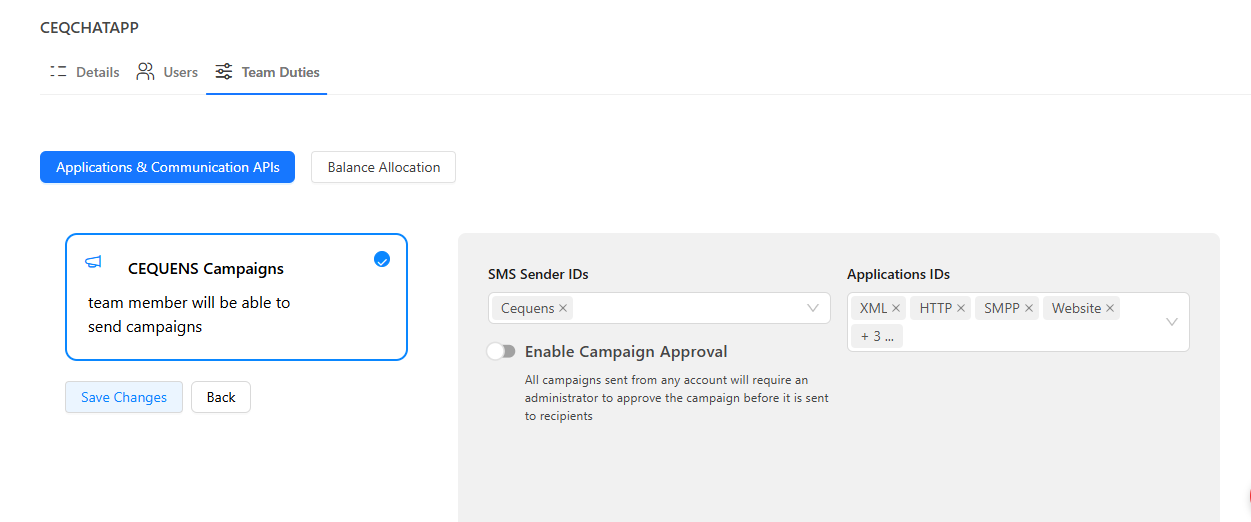
Assign Assets: Select the appropriate SMS Sender IDs and Application IDs from the available dropdown menus.
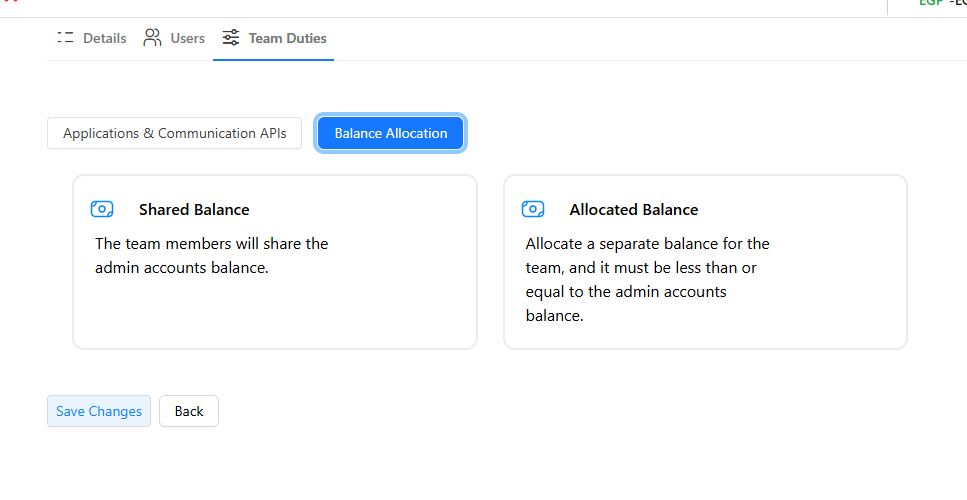
Set Balance Mode: Choose the preferred balance mode for the team and click Save Changes to finalize the setup.

Important Features & Controls
Campaign Approval (Optional): Enabling this control provides administrative oversight by requiring an authorized user to approve SMS campaigns before they are sent by the team.
Balance Configuration: Ensure the correct balance mode is selected to match the team's operational needs before saving.
For any further technical assistance, please contact the support team at support@cequens.com.