
To manage your internal credits within the Cequens platform, follow this guide to transfer funds between your internal accounts:
Accessing Billing Settings
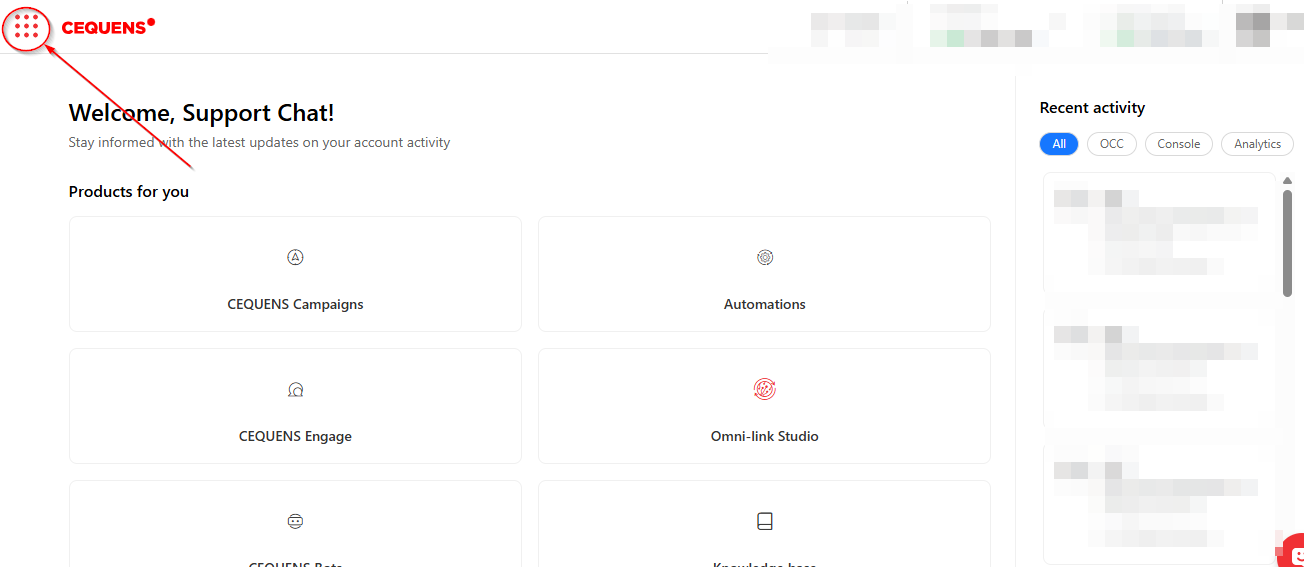
Open the Menu: Click on the Menu Icon.
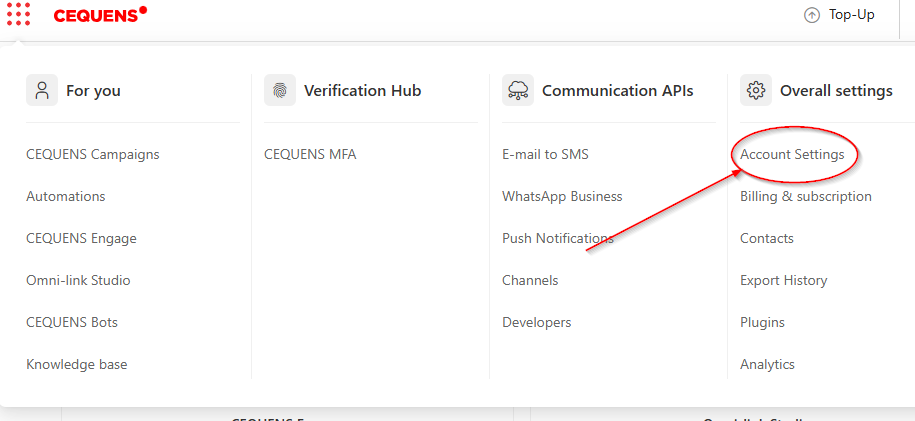
Navigate to Settings: Select Account Settings from the dropdown options.
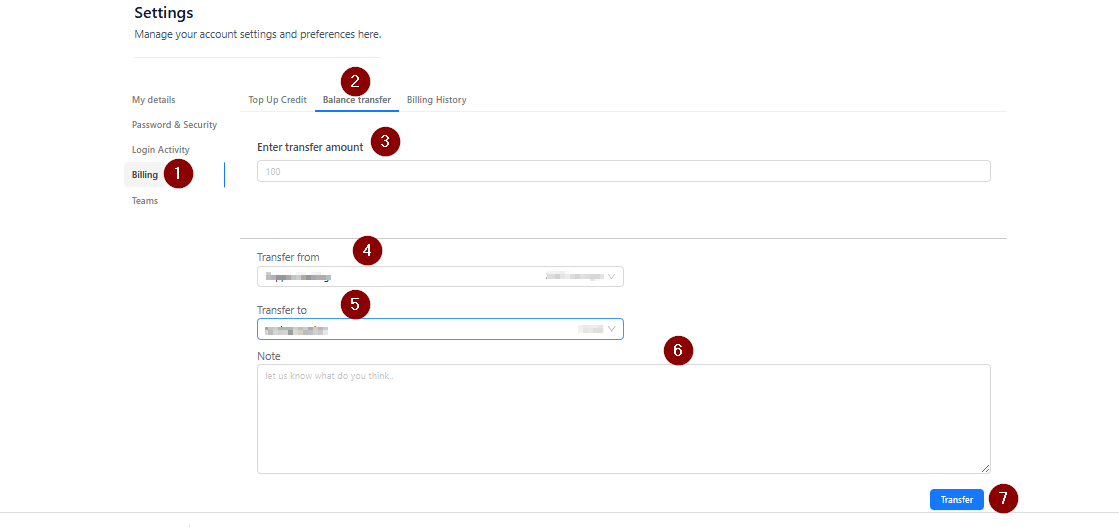
Enter Billing: From the left-hand menu, click on the Billing option to open your billing-related settings.
Executing a Balance Transfer
Open the Transfer Tab: Click on the Balance Transfer tab located at the top of the page.
Input the Amount: Type the amount of credit you wish to move in the Enter transfer amount field. Ensure the amount does not exceed your current available balance.
Select the Source: Use the Transfer from dropdown menu to choose the account from which the credit will be taken.
Select the Destination: Use the Transfer to dropdown menu to select the recipient internal account.
Add a Note (Optional): You may include context or remarks in the Note field for your records or team communication.
Complete the Transaction: Click the Transfer button to initiate the move. A success or confirmation message will appear once the process is complete.
If you face any difficulties during this process, please do not hesitate to contact us at support@cequens.com.